


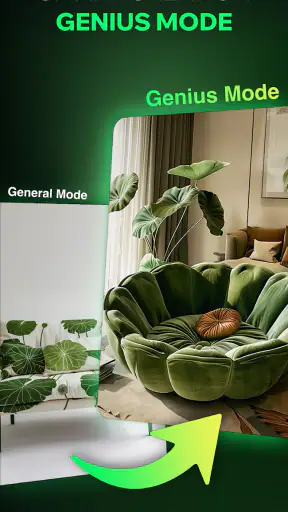
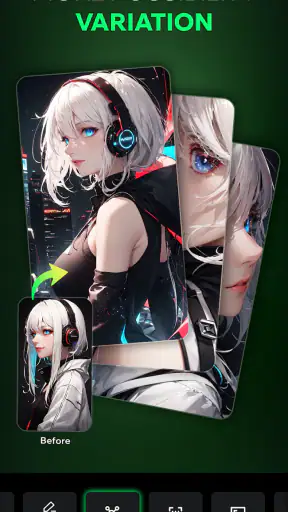
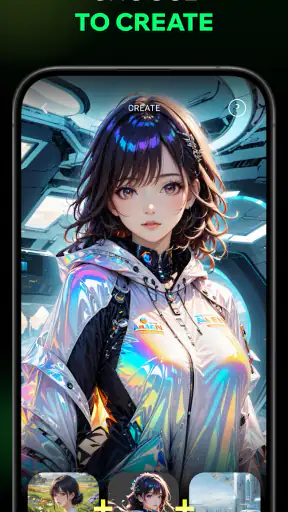
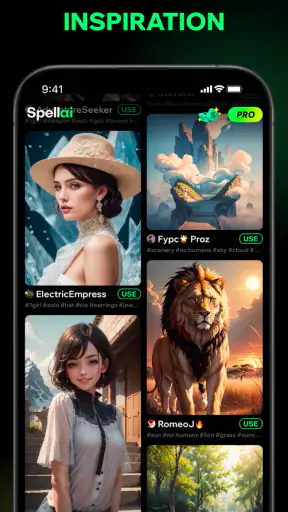
Spellai - AI Art Maker is the kind of app I open when I have an image in my head but not the drawing skills to get it onto a screen. Developed by POLYVERSE INC., it sits in the art and design category and combines text-to-image creation with image-to-video tools and an AI chat experience. After spending time with it, I think its most interesting quality is not simply that it can make attractive pictures. It is that a short written idea can become a visual starting point quickly, which changes the way I approach sketches, mood boards, character concepts, and social posts.
The app is free to install, and its current version is 2.0.4. It has built a sizeable audience, with more than a million installs, an average rating of 3.8 from roughly 33 thousand ratings, and about 1.3 thousand written reviews. Those figures suggest a product people are curious about but also one that does not satisfy every user equally. That matches my experience: the creative jump from words to images is genuinely useful, while the results still need direction, selection, and sometimes patience.
Turning a rough idea into a usable visual
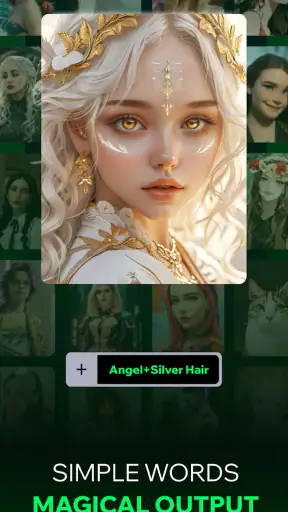
The central capability is text-to-image generation. Instead of beginning with a blank canvas, I can describe a subject, atmosphere, composition, or visual treatment and let the app produce an interpretation. This is especially helpful when the first hurdle is not editing but imagining. A phrase such as a quiet café at night, a futuristic travel poster, or a fantasy portrait gives me something concrete to react to rather than asking me to invent every visual decision from nothing.
That distinction matters. Spellai is not a replacement for a full illustration suite, and I would not treat it as one. Traditional drawing and design apps give me direct control over layers, paths, brushes, typography, and exact placement. Here, the main creative act is describing what I want, judging the result, and refining the request. The app is strongest when I need exploration, not when I already know the exact pixel arrangement I must deliver.
I found the text prompt works best when I think like a visual director rather than a novelist. I get more useful results by identifying the main subject first, then adding the setting, mood, lighting, and intended look. Long prompts packed with unrelated ideas tend to produce images that feel confused. A shorter description with a clear focal point gives me a better base for the next attempt.
The real advantage is speed of iteration, not perfect first attempts. The first image is often a conversation starter. I can notice that the framing is too close, the mood is too cheerful, or the character does not look as old or serious as intended, then adjust the wording. That process feels closer to visual brainstorming than to ordering a finished commission.
How the creative process feels in practice
My preferred workflow is to begin with one uncomplicated idea and create a baseline image before adding detail. For example, if I want a poster-like scene, I first describe the subject and setting. Only after seeing the initial direction do I add elements such as dramatic shadows, a limited color mood, or a particular cinematic feeling. This staged approach is more reliable than trying to specify every object in one sentence.
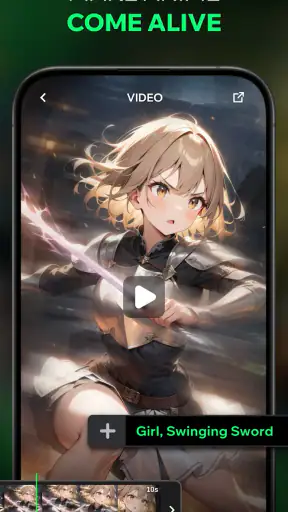
The image-to-video capability adds another layer to that process. A still image can serve as the starting point for a moving result, which makes the app more useful for short visual concepts than a static generator alone. I see this as a practical bridge between making an image and thinking about how that image might live in a feed, presentation, or personal project. It is not the same as producing a carefully edited film, but it can help me test whether a visual idea has enough energy to work in motion.
There is also an AI chat component, and I find its value depends on how deliberately I use it. Rather than treating it as a separate novelty, I would use the chat as a planning companion: to reshape a vague concept, explore alternate moods, or turn a basic subject into several prompt directions. The useful habit is to keep control of the final decision. Suggestions can widen the possibilities, but they can also pull the project away from the original purpose if I accept every idea automatically.
One practical tip is to save the wording that produced a promising direction before experimenting further. Small changes can alter the composition more than expected, and remembering the structure of a good prompt makes it easier to return to a recognizable visual style. I would also change one major element at a time. If I alter the subject, setting, lighting, and mood together, I cannot tell which change helped or hurt.
Another overlooked trade-off is the difference between inspiration and consistency. A single striking image is easy to appreciate, but creating several images that feel like they belong to the same project is harder. If I were building a set of character concepts or a sequence of scenes, I would keep a written style guide beside the app with recurring descriptions for age, clothing, atmosphere, and framing. Even then, I would expect to curate the results instead of assuming every generation will match perfectly.
A realistic everyday use: making a visual before a decision
Imagine I am planning a small event and need a quick mood board for the invitation. I might describe an evening garden gathering with warm lights, dark green foliage, and a relaxed but elegant atmosphere. Spellai can give me a visual reference before I spend time choosing fonts, colors, or stock images. If the result feels too formal, I can adjust the language. If it looks too dark, I can shift the mood. That makes the app useful at the decision stage, when I am comparing directions rather than publishing a final design.
The same workflow suits a writer outlining a story. I can create a visual impression of a location, then use the image to identify details I had not considered: the weather, the distance between buildings, the color of the light, or the emotional tone of a room. In that role, the app is less about producing an illustration for readers and more about helping me see the world I am writing.
For social content, the benefit is similar. If I need several possible concepts for a post, I can explore them faster than I could by manually assembling references. However, I would still check the output carefully before using it publicly. AI-generated images can contain visual inconsistencies, awkward details, or elements that do not communicate the intended message. Speed is valuable, but it does not remove the need for human selection.
Where it fits beside familiar art and design tools
Compared with a conventional drawing app, Spellai gives me a much faster first result but much less direct control. A drawing app is better when I want to construct an image deliberately, revise individual parts, or develop a personal hand-drawn style. Spellai is better when I want to explore several possible directions without starting every one from a blank page.
Compared with stock-image libraries, it offers more room for unusual combinations. I am not limited to finding an existing photograph that happens to be close to my idea. I can describe a more specific atmosphere or an imaginary scene. The compromise is predictability: a stock image gives me a known asset, while generated output needs inspection and may require multiple attempts.
Compared with a professional design program, the app is easier to approach but not a complete finishing environment. I would use it to generate concepts, backgrounds, references, and visual prompts, then move to another tool if I needed precise layout, brand consistency, detailed retouching, or production-ready typography. This division of labor makes more sense to me than expecting one mobile app to handle the entire creative pipeline.
The friction behind the appealing results
The free entry point is inviting, but the app includes in-app purchases ranging from $1.99 to $119.99 per item. That makes it important to understand my own usage before becoming dependent on repeated generations or premium actions. Someone who only wants occasional inspiration may find the free experience sufficient for casual exploration, while a frequent creator should pay attention to how quickly the workflow leads toward optional spending.
I also would not choose this app for work that requires guaranteed repeatability. If a client expects the same character, exact product appearance, or carefully controlled visual identity across many assets, generated images can introduce too much variation. I can improve consistency through disciplined prompts and selection, but that is still different from having precise design controls.
The age rating is Mature 17+, so I would not treat it as an all-ages creative space by default. Parents, teachers, and anyone setting up a shared device should consider that rating before recommending it to younger users. That is a practical point, especially because the app’s conversational and generative nature may encourage experimentation beyond a narrowly defined school-art workflow.
There is also a learning curve, although it is not the same kind found in complex design software. I do not need to master layers or vector paths, but I do need to learn how to describe visual intent. Words such as “dramatic” or “beautiful” are less useful than concrete choices about viewpoint, environment, lighting, and mood. Users who expect a single casual sentence to produce a finished masterpiece may be disappointed. Users willing to revise their prompts will get more from it.
One limitation I noticed in this kind of workflow is that attractive output can distract from the original goal. It is easy to keep generating because each variation feels interesting. I get better results when I decide in advance what the image must communicate and stop once I have a version that serves that purpose. Otherwise, the app becomes an endless browsing session rather than a creative tool.
Who will get the most from it
I would recommend Spellai to people who think visually but do not want to draw every idea themselves. It suits hobby artists, writers, content creators, students working on visual concepts, and anyone preparing a mood board. It is particularly helpful when the question is “Which direction should I explore?” rather than “How do I execute this exact design with professional precision?”
It can also help experienced designers during the early stage of a project. A professional may already have the skills to create the final asset, but rapid visual exploration can still save time when comparing atmospheres or compositions. In that situation, I would use the generated images as references and rough concepts, not automatically as the finished deliverable.
I would suggest skipping it if your priority is manual drawing control, reliable brand systems, detailed photo editing, or a predictable series of matching assets. A dedicated illustration, layout, or editing application will be a better investment for those needs. I would also skip it if you dislike iterative prompting, because the app rewards active direction rather than passive one-tap results.
Device compatibility is relatively broad: it runs on Android 7.0 or later, which makes it accessible to many older phones as well as newer devices. Still, the experience of generating and reviewing visual content is more comfortable on a device with a larger, sharper display and enough free space for a focused creative session. I would avoid judging it only from a quick launch; the value appears when I use it to develop an idea through several deliberate steps.
My recommendation after using it
Spellai - AI Art Maker is a useful idea generator with a particularly approachable route from written thought to visual draft. I like it because it lowers the intimidating first step: instead of staring at an empty canvas, I can describe a direction and begin evaluating something tangible. The image-to-video option and AI chat make the experience broader, but text-led visual exploration remains the reason I would return.
My recommendation comes with clear boundaries. I would use it for brainstorming, mood boards, story development, quick concept work, and early social-media ideas. I would not rely on it alone for precise commercial design, consistent characters, or final production assets that demand exact control. The free price makes trying it easy, while the Mature 17+ rating and optional purchases mean I would approach it with sensible expectations and spending limits.
Overall, I think the app earns a place on the phone of anyone who wants to turn an unfinished thought into a visual experiment. Its best results come from a patient workflow: start simply, refine one choice at a time, compare variations, and keep only what serves the project. If that sounds enjoyable, POLYVERSE INC.’s tool can make the creative process feel much more immediate. If you want a traditional canvas or a professional editing workstation, another app will likely suit you better.


